
# The "Presentation" Tool

The Presentation tool allows you to include and display various documents directly within a session.
The core concept is collaborative work: participants save their files in the shared document library and make them available to the group. The tool is added via the button in the tool sidebar.
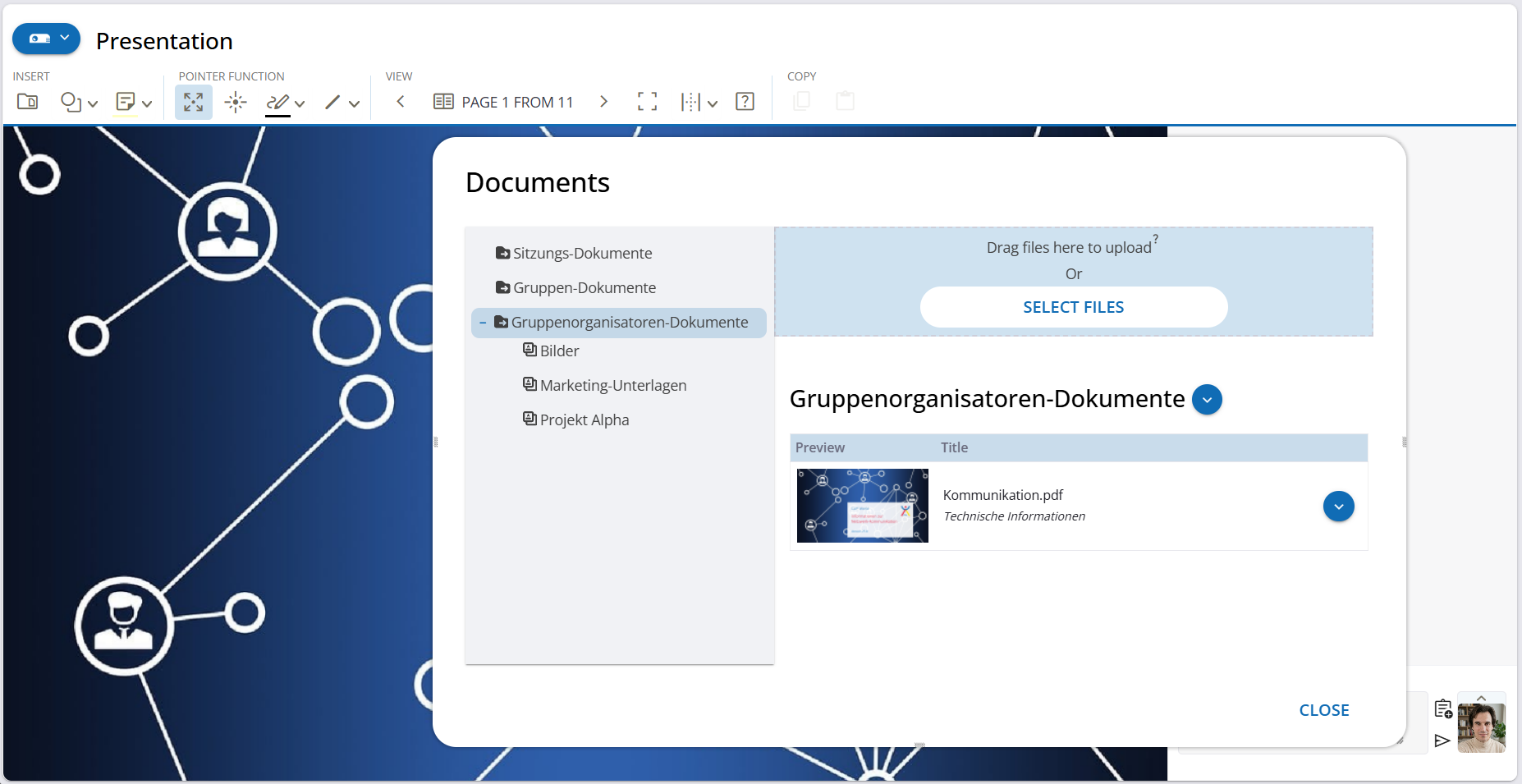 Figure: Example of a presentation within the tool
# Further Information
Related Topics
All graphical tools share the same basic operations (drawing, moving, deleting). For more details, please refer to: General Functions of Graphical Tools
# Functions at a Glance
Basic control is handled via tool-specific buttons:
snippet_folder Manage and select documents: Opens the file dialog.
chevron_left chevron_right Navigate:
For multi-page documents, you can browse forward and backward. The current page number is displayed.two_pager Page overview (selection dialog):
Displays a preview list of all pages.fullscreen Fullscreen mode:
For displaying documents in full-page view.
# Important Usage Notes
Synchronicity (Scrolling)
All session participants can scroll through the presentation. Please note: a change to the currently displayed page applies to all participants simultaneously. This behavior can be restricted via the session settings.
Drawings on Documents
You can draw directly on documents. These annotations are visible to all participants but are not saved within the document itself. When flipping to the next page, you will be asked whether existing drawings should be deleted or carried over to the next page.
No Direct Editing
Directly editing the content (changing text, etc.) is not possible within the tool. To edit files:
- Download the file to your computer.
- Edit it locally.
- Upload it again or use the Desktop Sharing function.
# Supported Document Types
| Document Type | Extension | Examples / Notes |
|---|---|---|
| PDF Files | Display any document (Word, PowerPoint, Excel, etc.) exported as PDF, e.g., reports, guides, CVs. | |
| Image Files | .jpg, .png | Display photos, screenshots, or captured notes. |
| Presentations | .ppt, .pptx, .odp | Display slides from PowerPoint or LibreOffice Impress. Tip: Better results are often achieved with .ppt instead of .pptx or by converting to PDF. |
| Documents | .doc, .docx, .odt | Microsoft Word, LibreOffice Writer. |
| Spreadsheets | .xls, .xlsx, .ods | Microsoft Excel, LibreOffice Calc. |
# Selecting Documents
To select a document, click on the folder icon. The dialog displays all available documents from the library.
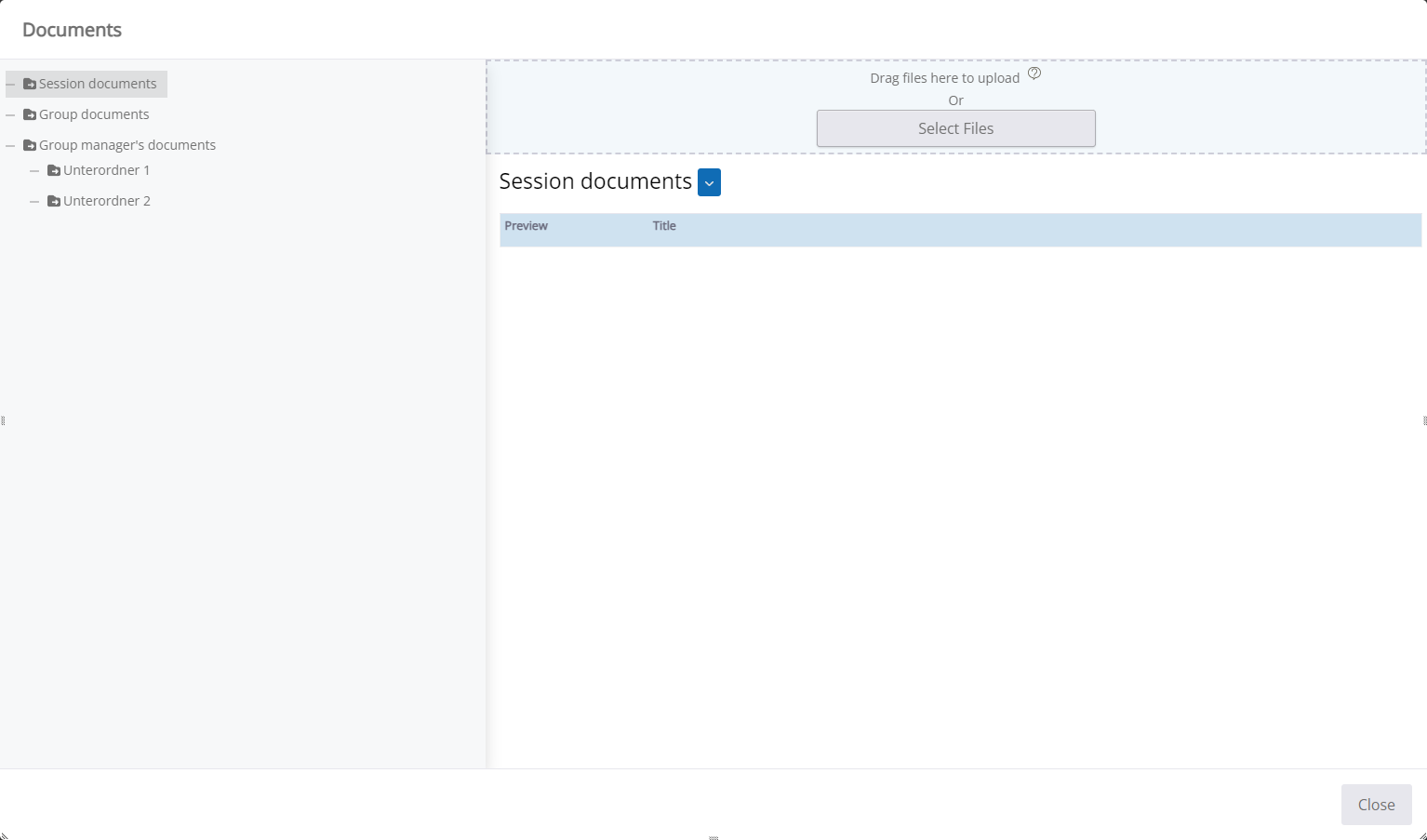 Figure: Selecting a document for the Presentation tool
The folder structure on the left corresponds to your document directory. Clicking a folder displays the files available there on the right. Clicking a document loads it into the tool for all participants.
# Missing Preview Images
If a question_mark question mark is displayed, a preview is not yet available.
This can happen if:
- The conversion is still in progress. Wait a few seconds and click the refresh Refresh button.
- The file format is not supported for visual display (e.g., .mp4).
# Direct File Upload
You can also upload new files directly through the selection dialog. Use the Select Files button or drag and drop files from your local folder into the dashed area.
 Figure: Selecting files for upload
# Do you need further assistance?
Would you like to learn more about managing files for the presentation tool? Detailed information on uploading and managing documents can be found in our documentation on document management.
Helpful Links
- book_ribbon Knowledge Base: General information on document management