
# General Information about the Document Library
Keywords: Document library, files, file sharing, directories, Session Documents, Group Documents, Group organizer documents# What is the document library?
The document library integrated into the platform enables the sharing of documents and the secure exchange of files.
Expand table of contents
Your benefits
This way, files do not need to be exchanged via email and are always available to all group members in a bindingly current version. In addition, the documents can also be used directly in the online sessions.
# How do you open the document management?
You can access the document management in various ways. Regardless of the chosen entry point, the central document management dialog opens in each case.
- Within a session: When you enter or open a session, you will find access directly within various tools (e.g., for document selection in the Presentation tool or in many tools via the add_photo_alternate Custom background image or category Custom icon options).
- Under "My Groups": Via the snippet_folder Documents action.
- Under "My Sessions": Via the snippet_folder Documents action.
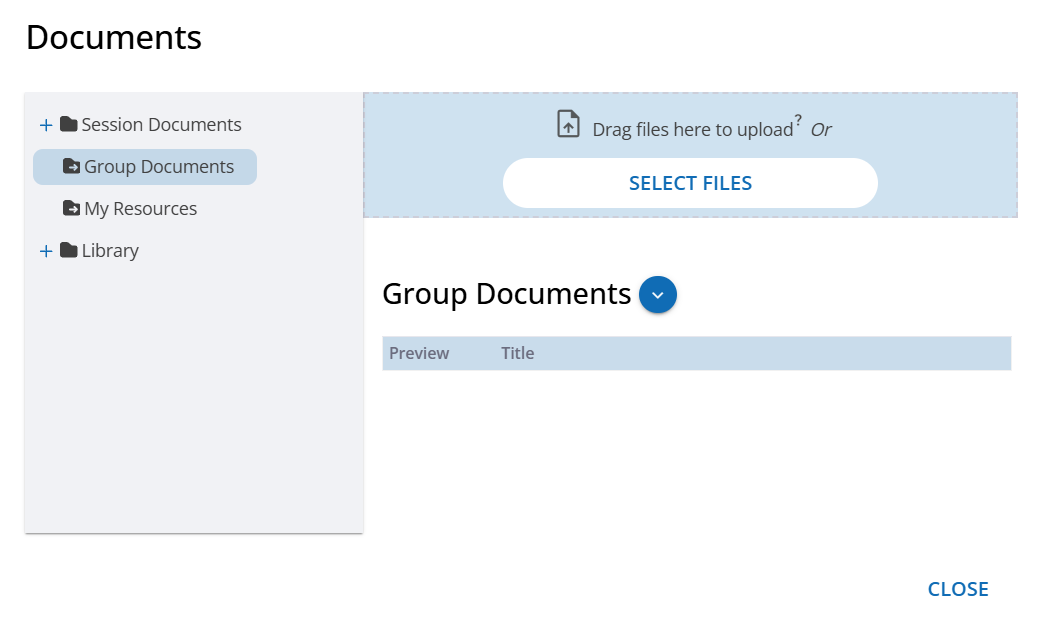
# Top directory level
The top directory level is displayed in the document dialog in the tree on the left. It controls the visibility and selection options for the subfolders:
# folder "Session Documents" subfolder
This subfolder contains the files that are to be assigned to the respective session.
- Access: Only accessible within a session.
- Content: Should contain files that are only needed in this specific session.
- Note: This directory is not available via the "Documents" group action.
# folder "Group Documents" subfolder
This subfolder contains the files that are to be made available to the group – across sessions.
- Application examples: This is where, for example, project goals, project phases, agreed group rules, general templates, etc. are stored.
- Access: Available for all sessions of this group.
# folder "My Materials" subfolder
This subfolder contains the documents of the group manager (i.e., the person who created this session or group).
- Access: Only visible and selectable when you are in your own session. Participants receive read access to the contents of the folder as soon as they are assigned to one of your groups.
- Application examples: Suitable for general, non-confidential documents (e.g., a company or profile presentation) and allows them to be easily interspersed into your own session.
# folder "Library" subfolder
- Access: Only visible and selectable if a custom customer-specific instance (Custom Branding) has been set up with this option.
- Benefit: Licensees can access a shared pool of materials here. Thus, files do not have to be uploaded multiple times.