
# Microsoft Teams Integration
Keywords: Microsoft Teams, Teams App, Stage, Waiting room, SSO, Log in, Profile picture, My accountBy integrating the Microsoft Teams app into supported instances, you connect two worlds: the established communication framework of Microsoft Teams and the powerful graphical tools of your online sessions. Manage your sessions directly within Teams meetings and collaborate seamlessly with your participants.
Expand table of contents
# The Foundation: App Installation and Personal App Area
You can acquire the app from the Microsoft Marketplace to integrate it into your Microsoft environment.
Once added, you can access your personal app area ("Static Tab") in the sidebar of your Microsoft applications (Teams / Microsoft 365) at any time, independently of specific meetings.
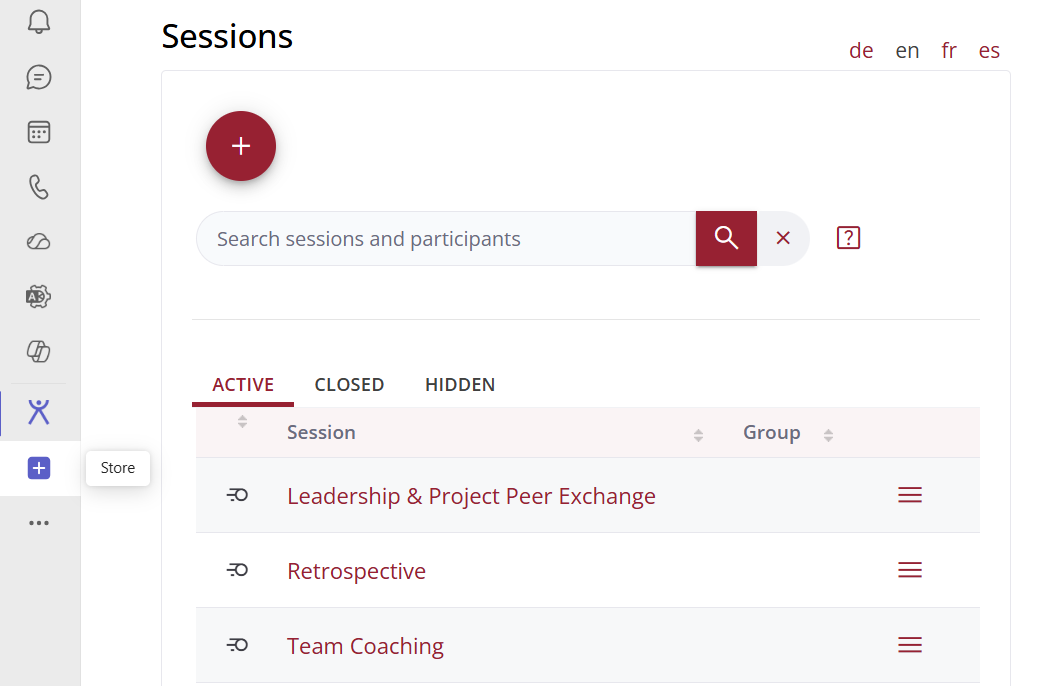
- Direct Access: Centralized management of all your sessions.
- Preparation: Create new sessions and prepare contents in advance before a meeting starts.
- Follow-up: Access results directly after the meeting to continue your follow-up work.
Pro Tip: Account Management & Profile Picture
In the personal app area, you will find additional settings to manage your login (e.g., logging out or switching accounts). Under "My Account", you can also upload a personal profile picture/avatar, which will then be displayed during sessions.
# Session Management Within a Meeting
How are interactive tools used during a live Teams meeting?
As a host/moderator, you can open the app via the "Apps" menu in the top bar of your Teams meeting. From there, you can access previously created sessions or generate new ad-hoc sessions on the spot.
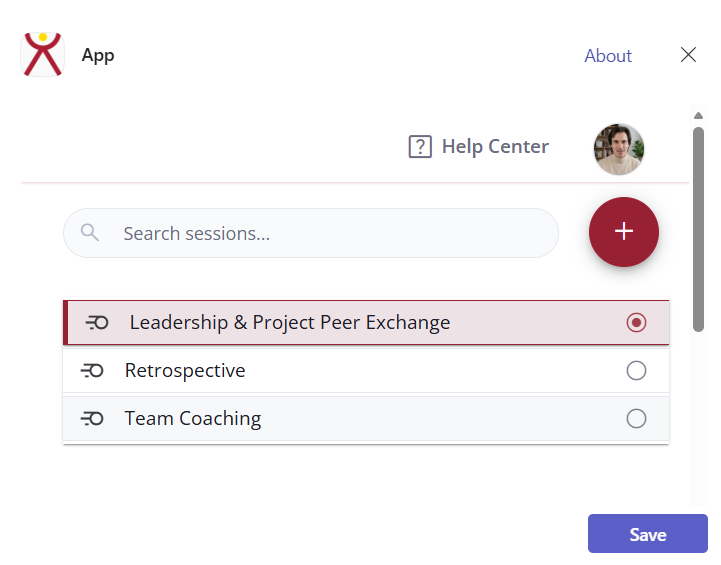
Registration & Login
If session management is not visible at this stage, you may not be logged in yet. Simply sign in using your existing platform credentials for the associated account.
Once signed in, the following functions are available:
- Use Existing Sessions: Search for and open pre-prepared sessions. This allows you to set up content beforehand or seamlessly resume work in follow-up appointments.
- Create a New Session: Click add (New Session) to create and select an additional session immediately.
- Confirm Selection: Click "Save" to set the session for interactive collaboration. Note: For existing sessions, ensure that the meeting participants match the access permissions of the selected content.
# Working with the Sidebar
The selected session opens in an overview display in the Teams sidebar. Alongside the session name, you will find key information such as the creator and active usage times.
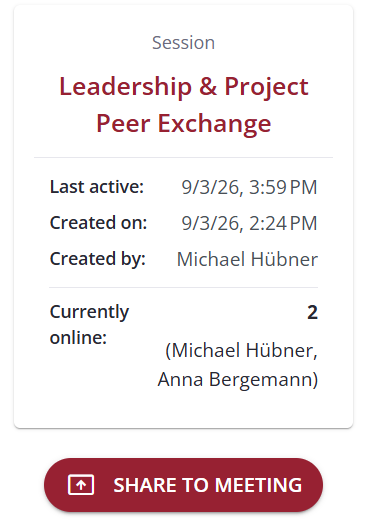
When appropriate during the meeting, you can share the session with all participants. To do so, click "Share to meeting" (or the "Share" button provided by Microsoft Teams).
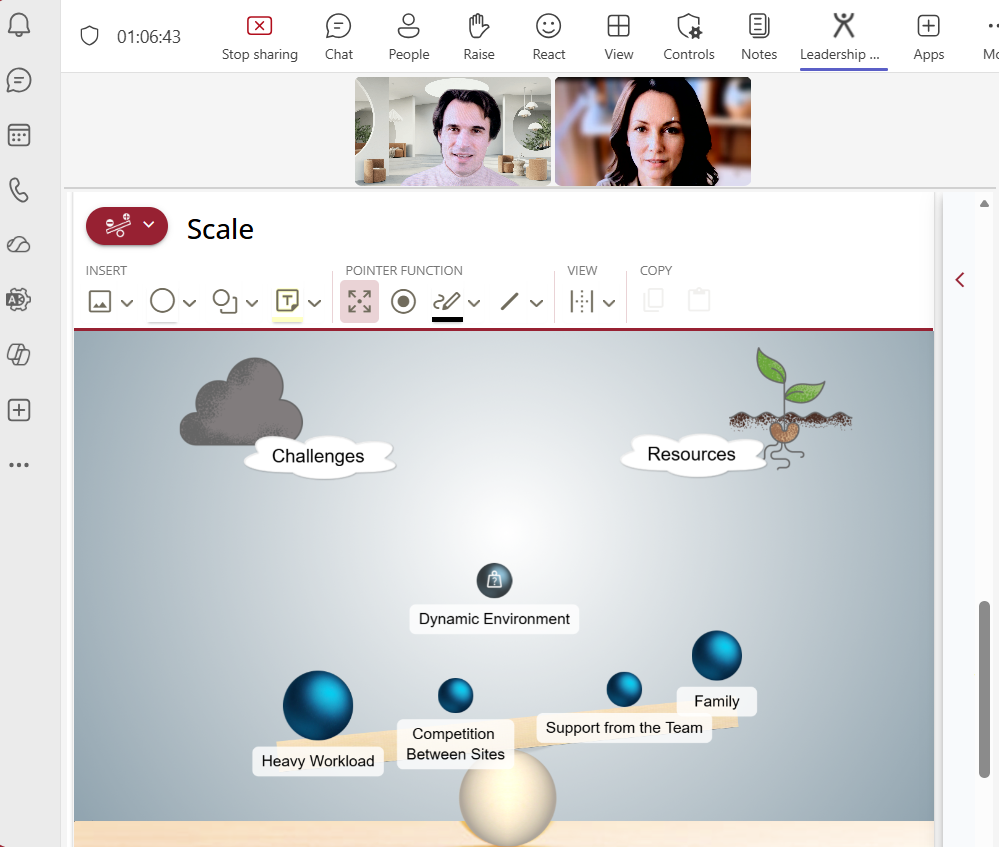
This opens the session with all its interactive tools on the main stage, allowing all attendees to join directly.
Keep Track of Interaction Status
The sidebar remains active while sharing. It provides moderators with a real-time overview of how many meeting participants have arrived and are currently in the waiting room.
# Collaboration on the Main Stage
Once the session is shared on the stage (the central area of the Teams window), meeting participants typically land on the login or waiting room page first.
# Joining & Entering the Session
On the entry page, all participants can choose from flexible joining options:
- Enter as Guest: Enter a name of choice. Joining is quick and straightforward without requiring an account.
- Local Platform Account: Log in with the email address and password of an existing account.
- Single Sign-On (SSO): Log in using external identity providers such as Microsoft or Google.
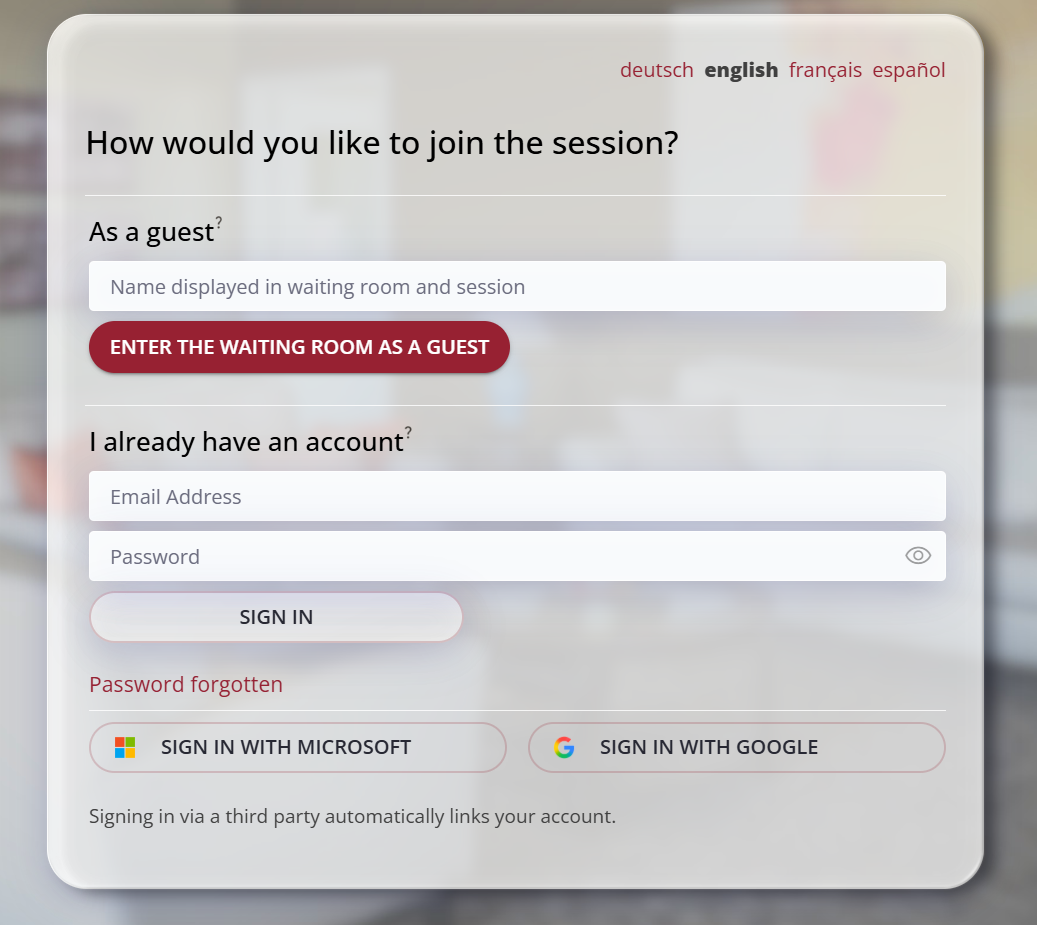
For more details on signing in, see the Login section.
Recommendation & Convenience for Microsoft Login
In a professional Microsoft Teams environment, signing in via SSO using "Sign in with Microsoft" is recommended, as an active Microsoft session is usually already active.
In most cases, this link is saved: For subsequent session visits, a single click on "Sign in with Microsoft" is enough to enter the waiting room directly without re-entering credentials.
Note on Windows During SSO Login
Due to strict security requirements enforced by identity providers (Microsoft / Google), authenticating via SSO within Teams will always open a separate browser window. Upon successful verification, this window closes automatically, returning you seamlessly to the stage.
# Waiting Room, Admissibility, and Permanent Access
After selecting a joining option, participants enter the session waiting room. Entry is managed by the host:
- Admitting from the Waiting Room: The moderator sees who has arrived in the sidebar or directly in waiting room management and can admit participants individually or all at once.

- "Admit Permanently" Option:
If participants log in using a platform account or via SSO, the host can use the "Admit permanently" option.
- Benefit: These participants receive permanent access rights to the session. This enables them to access the results anytime outside and after the Teams meeting via their personal app area.
- Note: The permanent access option is not available for guest logins due to security and identification reasons.
# Ending Collaboration
When you are ready to conclude the interactive phase of the meeting, simply click "Stop sharing" in Microsoft Teams. This closes the shared session on the stage while keeping all generated work results fully and securely preserved.