
# mail Invite and Send Personal Email
Keywords: Invite via email, send personal email, email delivery, invite via e-mail, send personal e-mail, e-mail delivery, link to session, mailto links, default program for emails, webmailFlexible notification options are available for inviting participants to a session or exchanging messages. These features can be found in the participant bar at the top left of the screen.
Expand table of contents
# Comparison of Notification Types
Clicking menu opens the menu with three different email options:
| Feature | Sent by | Purpose & Features |
|---|---|---|
| outgoing_mail Personal Email | Your email client | Custom text, personal sender address & "Sent Items" folder. |
| event_upcoming Invite | Portal server | Initial access including automatic calendar entry (ICS). |
| add_alert Notify | Portal server | Quick notification/update on progress or changes. |
# 1. outgoing_mail Send Personal Email
The "Send personal email" feature opens your default email client (e.g., Outlook, Apple Mail, Thunderbird, or Webmail). The message is sent using your personal sender address and appears in your Sent folder.
# How to Proceed
- Select Send personal email from the menu.
- A draft automatically opens in your email client.
- The session link and basic information are pre-filled. Add your custom text and send the email as usual.
Recommendation for initial contact
A personal introductory text increases trustworthiness and ensures your invitation is less likely to land in spam filters compared to automated system emails.
# Selecting the Email Client in the Dialog
Since email clients handle recipient lists differently, please select the appropriate option when triggering the feature:
- "Outlook" Option: Specifically optimized for traditional Microsoft Outlook (desktop application, separated by semicolons
;). - "Other Apps" Option: For Apple Mail, Thunderbird, webmail services, and newer Outlook versions (separated by commas
,).
Important Note
Always select the option that matches your actual application to ensure recipient addresses and subjects are transferred correctly.
# build Setup & Background on Your Email Client
When clicking this feature, the application generates a MAILTO link (Test link: Test email delivery). Your operating system then opens the configured default app.
Select your environment below to expand the step-by-step instructions:
desktop_windows Option A: Set up a traditional desktop app (Windows / macOS)
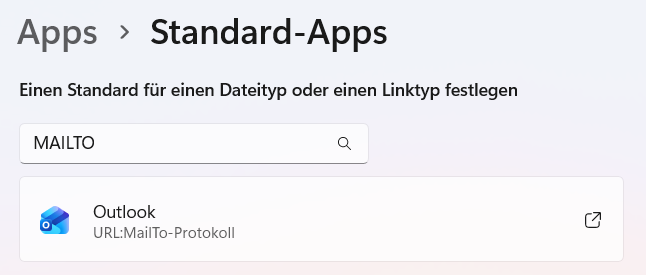
# Setup on Windows 11:
- Open the Windows Start Menu > Settings (gear icon).
- Navigate to Apps > Default apps.
- Type
MAILTOinto the search box at the top. - Click on the
MAILTOprotocol and select your email program.
# Setup on macOS:
- Open the Apple Mail app.
- Select Mail > Settings... (
Cmd+,) in the menu bar. - In the General tab, select your preferred application under Default email reader.
language Option B: Use Webmail (Microsoft 365 / Gmail)
Don't use an installed email app, but work with webmail in your browser instead?
# 1. Microsoft 365 / Outlook on the Web (outlook.cloud.microsoft)
Access outlook.cloud.microsoft (opens new window) in your browser.
In the address bar on the right (next to the star icon), click the Install Outlook (PWA) icon.
 Figure: App installation and service handler in the address bar
Assignment in Windows: Open Windows Default Apps, search for
MAILTO, and select Outlook (PWA).
# 2. Gmail / Google Workspace
Open Gmail (opens new window) in your browser (Chrome, Edge, Brave).
Click the double diamond icon (protocol handler) on the right side of the address bar.
Confirm the prompt "Allow mail.google.com to open all email links?" by selecting Allow.
 Figure: Service handler registration in Gmail
Note: If the prompt does not appear, check your browser settings under Privacy and security > Site settings > Handlers to see if Gmail is blocked.
help Troubleshooting: What if no window opens?
If no email draft appears after clicking:
- Check default app: Is an application assigned to
MAILTOin Windows/macOS? - Pop-up blocker: Allow pop-ups for our application in your browser.
- Restart: Briefly restart your browser after completing the setup.
# 2. event_upcoming Invite via Standard Email
The standard email is an automated invitation sent directly via the portal server. It is ideal for initial invitations that include a calendar entry.
Availability
This feature is available for group sessions. It is not available for ad-hoc sessions. Further information on session types
# Your Advantages
- Automatic session link: Session name and access link are inserted automatically.
- Integrated calendar entry: An ICS file is automatically attached. Recipients can add the appointment to their calendar with a single click.
- Personal touch & copy: You are named as the inviting person and receive a copy for your own calendar.
# System Details at a Glance
| Element | Details |
|---|---|
| Sender | Portal system address |
| Content | Standardized invitation text with session link |
| Attachment | ICS calendar file |
Text customization not available
Unlike the personal email, the text of the standard email cannot be adjusted manually.
# 3. add_alert Notify via Standard Email
With the "Notify" feature, you can send a quick update to all participants – ideal for asynchronous work.
# How It Works
- Quick dispatch: Clicking the bell icon add_alert triggers sending immediately.
- Content: The portal sends a brief notification with the session link and a note about updates.
- Available to everyone: Not just moderators, but all participants can trigger this notification.
Best Practice: "Quick Update"
Use this feature after editing content (e.g., preparing a whiteboard) to quickly inform the group: "There are new content updates in the session!"