
# Login
Keywords: Password, Credentials, Ad-hoc session, Verification code, Verification link, Confirmation code, Security question, Forgot password, Login, Sign in, Sign-inTo log in successfully, choosing the correct server and using your individual credentials are key.
Expand Table of Contents
# Server and Address
The software operates on various servers (e.g., located in "Germany" or "Switzerland"). Since your account is permanently assigned to a specific server, you must use the correct web address in your browser.
# How do I find my server?
- As a License Holder: You have received an email containing your personal login credentials and the corresponding server address.
- As a Contact: You received a contact request from which the server is derived. You subsequently created your own account on that specific server.
- As a Guest of an ad-hoc session: You do not need to log in. The link in your invitation will take you directly to the session.
Our Recommendation
Once you have identified your login address, we recommend creating a bookmark in your browser. This gives you convenient, one-click access to your workspace at any time.
# Logging into the Server
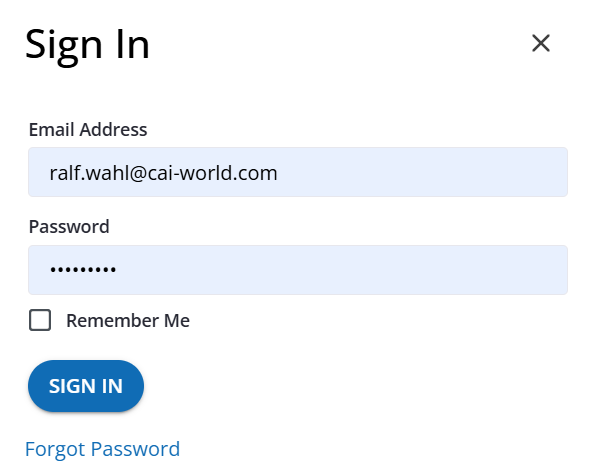
Once you are on the correct server, you will find a "Sign in" button in the top right corner at any time, should the login dialog not already be visible on the page. Log in using the credentials (email address and password) you created during the account setup process.
# Special Case: Forgot Password
Keywords: Forgot password, Reset passwordIf you ever misplace your password, you can reset it independently at any time. To do this, use the "Forgot password" function in the login dialog.

# The Security Question
To reset your password, you must provide your registered email address and correctly answer the security question (password reminder) you selected during the initial setup.
Important: Case Sensitivity
The answer to the security question must be an exact match. Please pay close attention to uppercase and lowercase letters as well as potential spaces.
If you are unable to answer your security question correctly, please contact our support team.
# Site Switching: Navigating the Platform
After logging in, you may find yourself on the public site initially.
# Switching to the Private Area
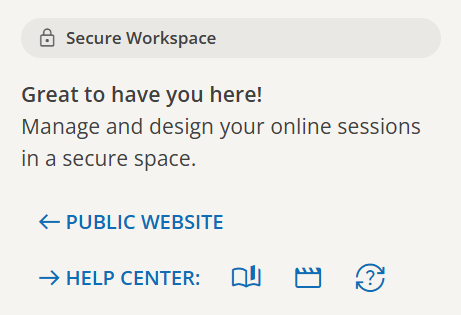
Click the "Start" button to go directly to your protected, private workspace.
# Switching Back or Changing Worlds
Do you want to return to the public site or switch to a different environment?
Method 1: Click at Public Website
Method 2:
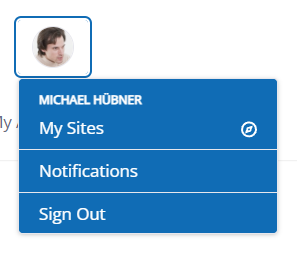
- Click on your profile/account picture in the top right corner.
- Select the menu item "My Worlds".
- Choose the desired interface from the list.
Successfully logged in? Would you like to learn how to start your first ad-hoc session next?
# Do you need further assistance?
If you encounter issues during login or receive error messages regarding your credentials, you will find detailed support for the most common causes in our Knowledge Base.
Helpful Links & FAQ
You can find further support in our dedicated FAQ articles:
- question_exchange FAQ: Problems with email address or password
- question_exchange FAQ: Problems with the verification code