
# Managing Participants in the Session
In an active session, you always keep track of all present participants. Through participant management, you can invite new contacts, assign moderation rights, and individually control the use of microphone and camera.
Expand table of contents
# Opening the "Participants" Dialog
You can access participant management during an active session as follows:
- Click on the Menu menu in the top control bar.
- Select the menu item Participants.
# Invitation Options & Contact Selection
At the top of the dialog, buttons are available to invite additional people to the session:
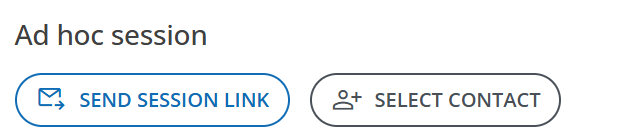
Send Session Link: Opens the email client registered on your system (via a
mailto:link) with a pre-formatted invitation email including the session link.Resolve Email Issues
If your email program does not open automatically when clicked, you can find further information and help under Invite & Send Personal Email.
person_add Select Contact: (Only available in ad-hoc sessions) Allows you to add people directly from your own contacts.
- Click on Select Contact.
- Enter the desired name (autocomplete function).
- Select the contact – the person will immediately be added to the participant list.
Group Sessions
In group sessions, the Select Contact button is not displayed. If you wish to adjust participants in a group session, make the change outside the session in the group settings. The adjustment automatically applies to all sessions of this group.
# Actions in the Participant List
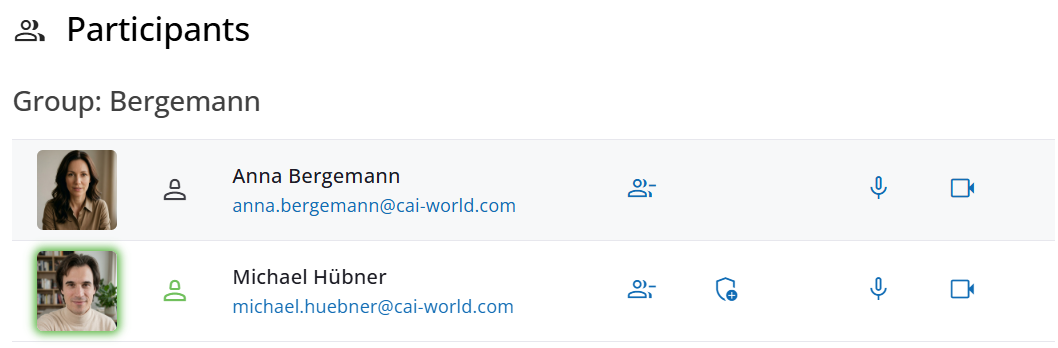
The list displays all participants of the current session. On the right side of each row, various actions are available:
group_remove Remove Participant: Removes the selected person directly from the running session.
add_moderator Grant Moderation Rights: (Only available for license holders) Grants the selected person permissions for participant management as well as moderation functions.
mic Microphone Control: Controls permission assignment for the respective person's audio activation. By clicking repeatedly, you cycle continuously through the following three states:
- Default (from session settings): Adopts the settings from the general session settings (whether participants are allowed to enable their microphone independently or not).
- Activation blocked: The microphone remains disabled for this person and cannot be turned on by them (overrides session settings).
- Activation allowed: The person is allowed to freely activate their microphone (overrides session settings).
videocam Camera Control: Controls permission assignment for video transmission analogously to microphone control using the three-stage principle:
- Default (from session settings): Adopts the settings from the session settings.
- Activation blocked: Video transmission remains blocked.
- Activation allowed: The person is allowed to freely turn on their camera.