
# My Account
Keywords: password, passcode, My Account, user picture, profile picture, general profile information, booking data, change password, password reminder, security question, 2-factor authentication, 2FA, multi-factor authentication, MFA, TAN code, notifications, delete accountHere you can manage your personal user account: your profile information, profile picture, password, notifications, and much more.
Expand Table of Contents
# General Information
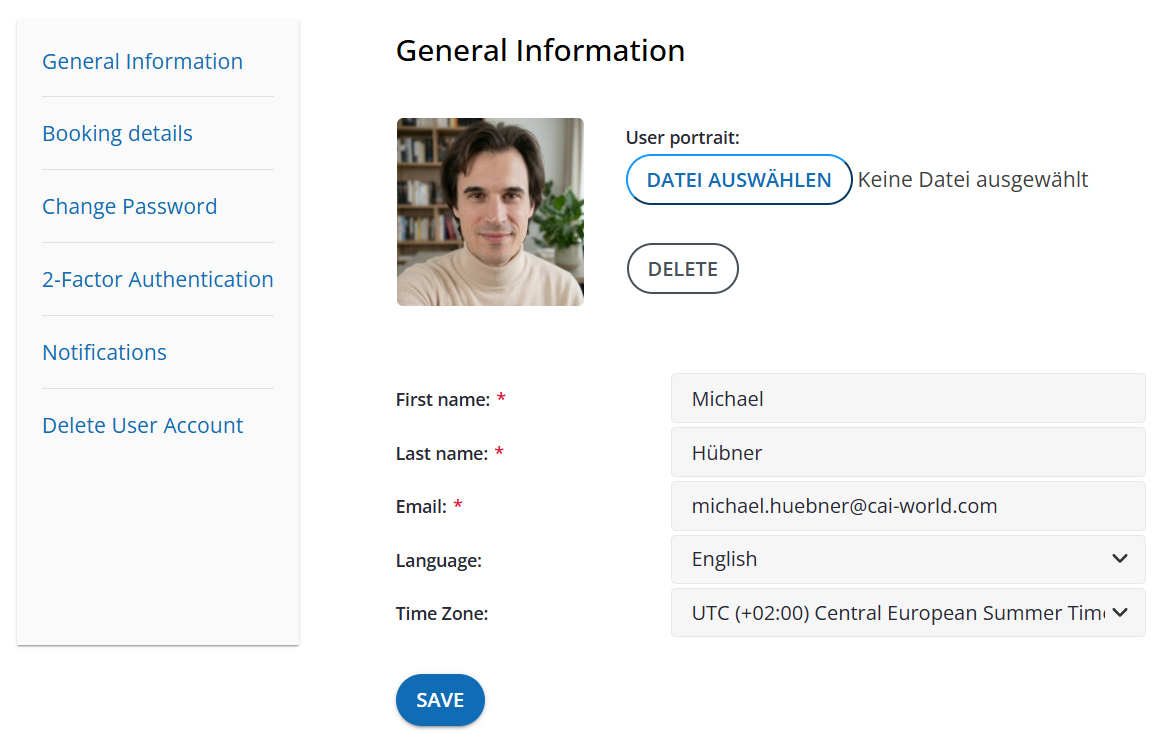
In General Information, you can manage your personal profile information, adjust language settings and time zones, and upload a custom profile picture.
Navigation
After logging in, you can reach this section via the menu My Account > General Information.
# Change and Crop Profile Picture
A custom profile picture helps other users identify you more quickly within the application.
# Step-by-Step Instructions
Select File
In the Profile Picture area, click the Select File button and choose an appropriate image file from your computer.Crop Image
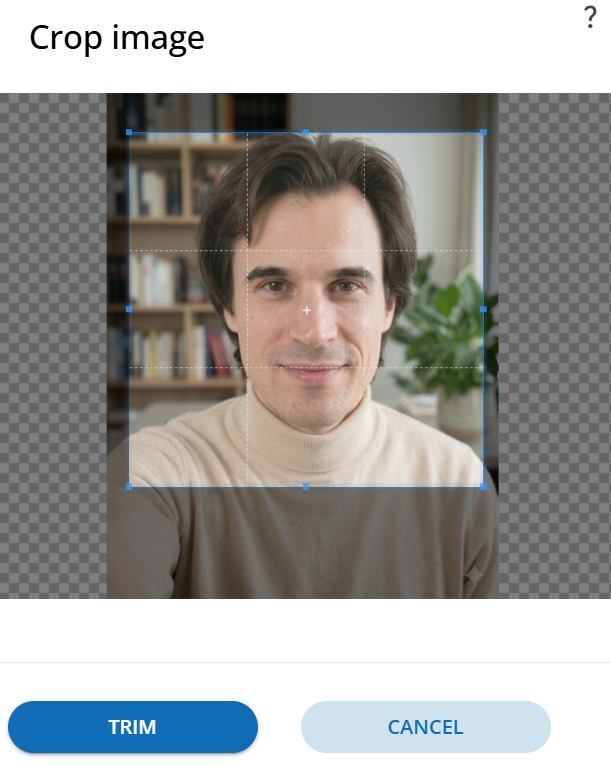
After selecting a file, the Crop Image window opens automatically.
- Drag the selection frame to the desired image section.
- Click Crop in the bottom left to confirm the selection (or Cancel to discard).
Check Preview
After cropping, the preview displays the new image. Next to the file name, the notification not yet saved appears.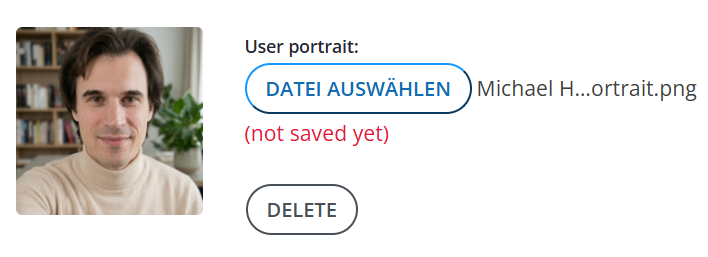 Figure: Preview before saving
Save Changes
Scroll down and click the Save button to permanently apply the new profile picture and any text changes.
Important Note
As long as the red status (not yet saved) is displayed, changes are only visible locally. If you leave the page without clicking Save, the newly uploaded image will be lost!
# Personal Data & Settings
Below the profile picture, you can adjust your personal details and preferences:
| Field | Description |
|---|---|
| First Name | Your first name |
| Last Name | Your last name |
| Your primary contact and login email address | |
| Language | Preferred interface language (e.g., English) |
| Time Zone | Time zone for accurate date and time information (e.g., UTC (+02:00) Central European Summer Time) |
Delete Profile Picture
If you want to remove your profile picture entirely and reset it to the default avatar, simply click the Delete button below the image settings.
# Booking Data
In Booking Data, you manage your specific information for online bookings.
Visibility of Menu Item
This section is only displayed in your account if a booking system is actively enabled on the platform. If no booking system is integrated, this menu item is hidden.
# Purpose
Depending on what is offered, you can use the integrated booking system to book various options directly:
- event Appointments (e.g., individual meetings, consultation appointments)
- school Seminars (e.g., training sessions, further education events)
- confirmation_number Events (e.g., workshops, special events)
# Update Data
Since different offerings require specific participant information, you can view and update your booking master data here at any time.
System-Specific Fields
The requested fields vary from system to system, as each organization or booking system requires individual mandatory and optional fields (e.g., contact details, billing address, department, or specific prior knowledge).
# Instructions for Updating
- Navigate to My Account > Booking Data.
- Adjust the desired fields to reflect your current information.
- Confirm your changes by clicking Save.
Check Before Booking
Make sure your booking data is always up to date before booking a new appointment or seminar. This ensures smooth registration confirmation and accurate issuance of documents or certificates.
# Change Password
In Change Password, you can update your login password and set up a security question (reminder question) for account recovery.
Regular Updates
For high account security, it is recommended to use a password that you do not use for any other service.
# Renew Password
To change your password, first confirm your current password and then set a new, secure password.
# Password Requirements
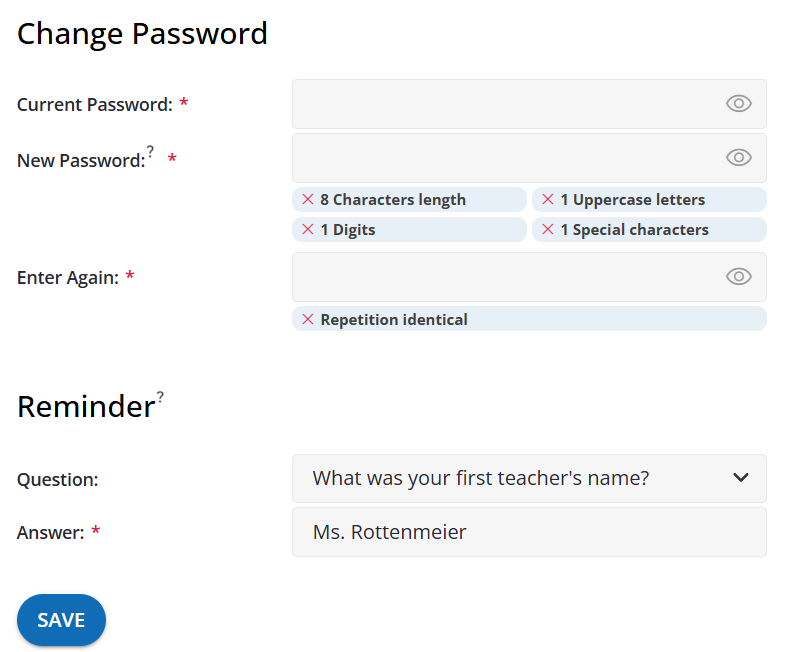
The new password must meet specific security criteria. As you type, the system automatically checks your input against the requirements configured for your system. In the illustrated example, these are:
- check_circle 8 characters in length
- check_circle 1 uppercase letter
- check_circle 1 digit
- check_circle 1 special character
Live Validation
The validation indicators below the input field show directly which criteria are already fulfilled. Changes can only be saved once all requirements are confirmed in green and the passwords in New Password and Re-enter Password match.
# Step-by-Step Instructions
Enter Current Password
Enter your currently valid password into the Current Password field.Enter New Password
Enter your desired new password into the New Password field. Pay attention to the security indicators.Re-enter Password
Type the new password identically into the Re-enter Password field.
Show Plain Text
Click the eye icon (visibility) on the right edge of the password fields to reveal characters and avoid typos.
# Set Security Question
The security question is used to verify your identity if you ever forget your password and need to reset it.
Select Question
Select a predefined security question from the Question drop-down menu, or choose Set custom question.Enter Answer
Enter your personal answer in the mandatory Answer field.
Confidentiality of Answer
Choose an answer that is easy for you to remember but impossible for others to guess. Note that during password recovery, the answer must be entered exactly as stored here.
# Save Changes
After completing the fields, click the Save button below to activate your new password and security question.
Possible Error Causes When Saving
- Incorrect Current Password: If the current password was entered incorrectly, saving will fail.
- Mismatching Passwords: The New Password and Re-enter Password fields do not match.
- Incomplete Mandatory Field: The Answer field for the security question must be filled out.
# Two-Factor Authentication
Two-Factor Authentication (2FA) provides an additional layer of security for your account. Once enabled, logging in will require a one-time 6-digit security code from an authenticator app in addition to your regular password.
Recommended Security Measure
We strongly recommend enabling two-factor authentication. This keeps your account protected even if your password should ever fall into the wrong hands.
# Enable 2FA
If protection for your account is not yet configured, the notice Protection is inactive will be displayed.
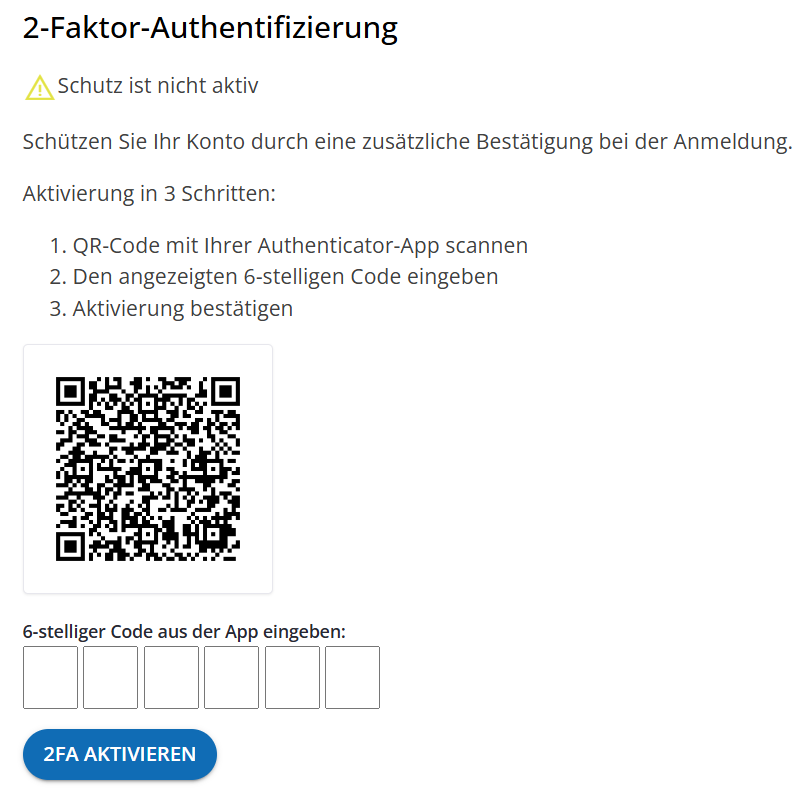
# Step-by-Step Initial Setup Guide
Open Authenticator App
Open a suitable authenticator app on your smartphone (e.g., Google Authenticator, Microsoft Authenticator, 2FA Authenticator).Scan QR Code
qr_code_scanner Scan the QR code displayed on the screen using your authenticator app's scanner function. The account will then be added to your app automatically.Enter 6-Digit Code
pin Read the currently generated 6-digit code (one-time passcode) from your app and enter it into the six input fields.Confirm Activation
Then click the Enable 2FA button to complete the setup.
Code Validity
Note that the 6-digit security code in your authenticator app is time-based and usually refreshes every 30 seconds. Enter the code promptly.
Immediate Prompt After Setup
Please note: After submitting the code or completing the initial 2FA setup, the system typically prompts you immediately for a current 2FA code again to verify active session security and maintain your login. Keep your authenticator app open.
Future Login Procedure
Once you have enabled two-factor authentication, the 6-digit security code will be requested after entering your password during every future login. For detailed instructions on the login procedure, see the chapter Logging In with Active Two-Factor Authentication.
# Disable 2FA
If two-factor authentication is already set up for your account, the current status Protection active is displayed instead of the QR code.
If you switch mobile devices or want to temporarily turn off 2FA, you can disable the protection as follows:
- Navigate to My Account > Two-Factor Authentication.
- Click the Disable 2FA button.
- In the security dialog, enter your current password and the current code from your authenticator app.
- Confirm the process by clicking Disable.
Security Risk Upon Deactivation
As soon as you disable two-factor authentication, your account is protected solely by your standard password. Re-enable 2FA as soon as possible after changing devices or completing setup updates.
# Notifications
In Notifications, you can specify which events and channels the system should use to notify you.
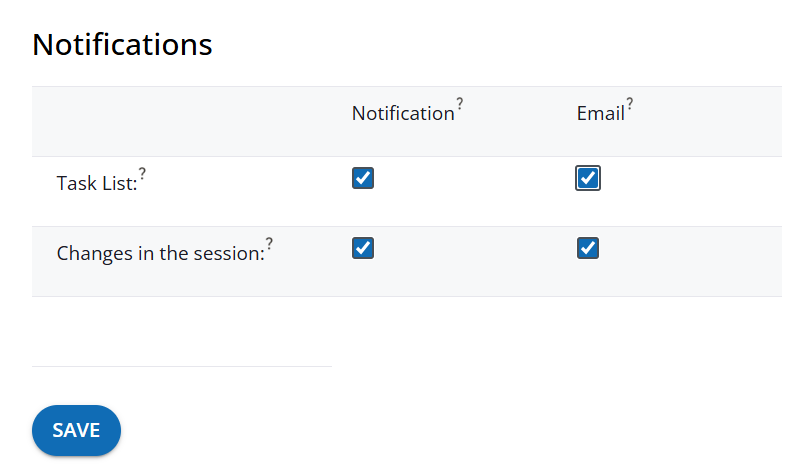
# Notification Channels
Settings are divided into two channels (columns):
Notification (In-App Notification):
These notices are displayed directly within the application in the top right menu bar next to your profile picture. A small counter (counter_1) indicates the number of new messages. Clicking it opens the notification overview.Email:
When enabled, you receive an automated email to your registered address whenever corresponding events occur.
# Events and Scenarios
In the rows, you define which features trigger notifications on your chosen channels. The available options may vary depending on the system and account type, but typically include:
| Area | Description |
|---|---|
| Task List | The Task List tool notifies assigned users as soon as a task reaches its due date. |
| Session Changes | In sessions, the bell icon (notifications) menu item allows using the "Notify via default email" feature to inform all session participants. If you prefer not to receive these notifications, you can disable them for yourself here. |
# Save Settings
Adjust the checkboxes according to your preferences and confirm your selection by clicking Save at the bottom.
Custom Muting
If you participate in many sessions and want to reduce inbox clutter, simply uncheck Session Changes in the Email column. The in-app notification in the top menu bar can remain active independently.
# Delete Account
In Delete Account, you have the option to completely remove your user account and all associated personal data from the system.
# Account Types and Deletion Options
The procedure for account deletion varies depending on your current account type:
Invited Contacts & Trial Accounts:
person_remove If you were invited as a guest/contact or are using a trial account, you can delete your user account and stored data yourself at any time with a single click.Paid Licenses (Special Case):
verified_user If your account is linked to an active paid license, it cannot be deleted directly via a click due to contractual obligations. In this case, the following notice is displayed:
Notice for License Holders
"For license holders, written cancellation (in writing or by email) is required. Once the cancellation has been processed, account deletion will be available in this section."
# Step-by-Step Instructions (for Free / Trial Accounts)
- Navigate in the left menu to My Account > Delete Account.
- Review the warning notices regarding impending data loss.
- Confirm the operation by clicking the Delete Account button.
Irreversible Deletion
Please note that account deletion is irreversible. All personal settings, saved data, and access rights will be permanently removed. Restoration is not possible once confirmed.