
# Session Logs, Printing & PDF Export
For seamless documentation, the platform offers both automatic background saving and a flexible export and print feature.
Expand Table of Contents
# Smart Saving
Your work is always safe: all changes to content are saved fully automatically in the background.
To permanently freeze the current state of a session and protect it from subsequent changes, you can adjust the session status. Because participants can access the content asynchronously at any time, manual intermediate saving is not required.
Status Management
For further information on revision security, please refer to the chapter Session States.
# PDF Export & Printing Overview
Using the export feature, you can flexibly save sessions as a PDF file on your device or output them directly to a physical printer.
How the Process Works
Exporting always takes place in two simple steps:
- Define content & format (in our platform's dialog)
- Select destination: PDF or printer (in the subsequent system print dialog of your browser)
For recurring collaboration, you can also grant participants direct system access—making manual exports largely unnecessary. For more information, see Contacts.
# 1. Open the Export Dialog
There are two ways to open the setup dialog:
- Via the main menu: Click "Print session (PDF)" in the control panel (top left).
- Directly on the workspace: Click the print "Print session" button located above the content.
# 2. Configure Content & Format
In the setup dialog, select which elements should be exported:
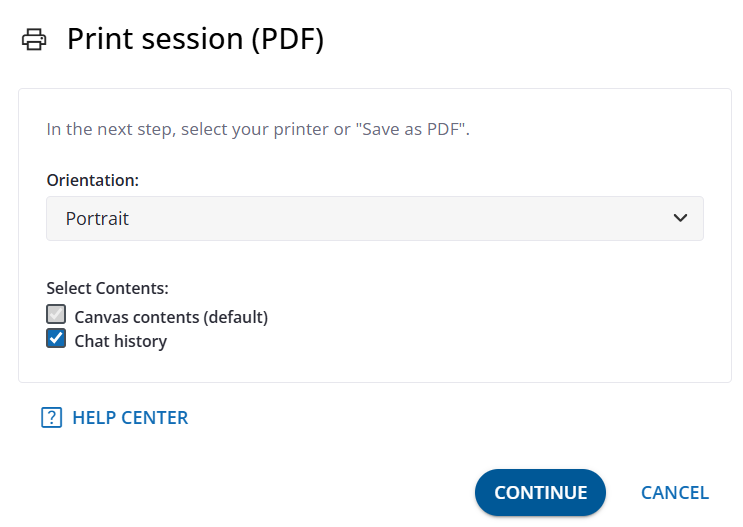
- Orientation: Choose Portrait (recommended for text-heavy logs) or Landscape (optimal for wide canvas areas and boards).
- Select Content:
- Canvas content (Default): The main visual tool is always included and selected by default.
- Chat history: Enable this option if you want to include the chat history as a log attachment.
- "Next" button: Click Next to confirm your settings and open your browser's system print dialog.
# 3. Select Destination: Save as PDF or Paper Printer
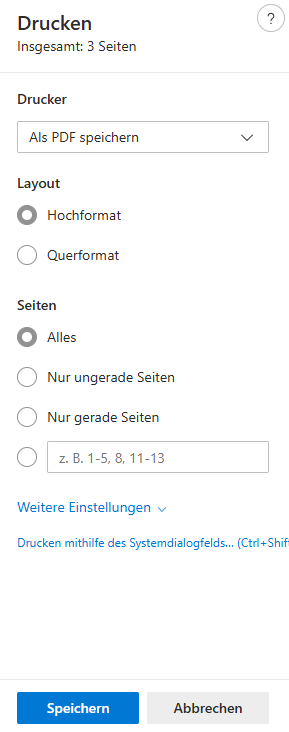
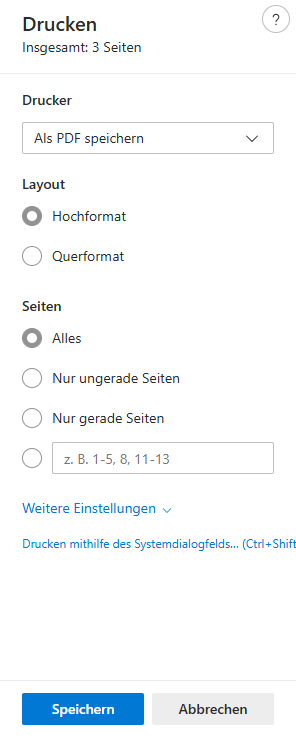
After clicking Next, your operating system/browser's standard print dialog will open. Choose your final output format here:
# Option A: Save as PDF File (Recommended)
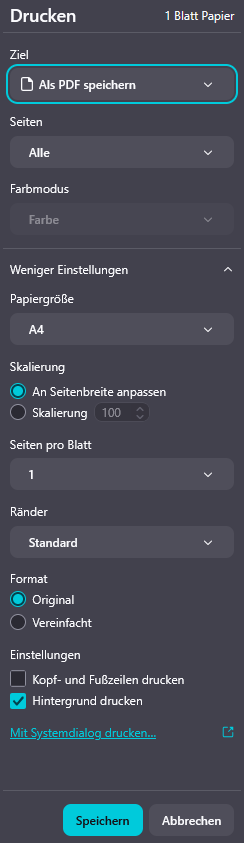
In the Destination field, select "Save as PDF" (or "Microsoft Print to PDF" on Windows). Click Save and choose your desired location on your computer.
# Option B: Print on Paper
In the Destination field, select your connected Printer and click Print.
# Browser Print Dialog Examples
Recommendation for Mozilla Firefox
In Firefox's advanced settings, ensure that scaling is set to "Fit to page width" to guarantee an optimal layout.
# Best Practice & Connection Note
Connection During Printing
Modern browsers prioritize the print process and temporarily pause background scripts. This may cause the live server connection to disconnect briefly.
Recommendation: Perform PDF exports preferably after completing active sessions. If the connection drops, simply reload the page in your browser.