
# Your Workspace at a Glance
Keywords: Session workspace, session, room, session areas, header bar, participant bar, session participants, online participants, offline participants, participant menu, move video image, enlarge video image, reduce video image, zoom video, scale video, emoji, emoticon, sidebar, add tool, change format, automatic saving, PDF export, save session content# grid_view Areas & Functional Blocks
Welcome to your interactive workspace! This is where communication and collaboration flow together seamlessly. This guide will show you how to make the most of the available tools to make your sessions efficient, engaging, and productive.
Expand Table of Contents
movie Prefer a visual guide?
Watch our Video Tutorial on Navigation and Communication to see these features in action.
# The Header: Participants and Controls
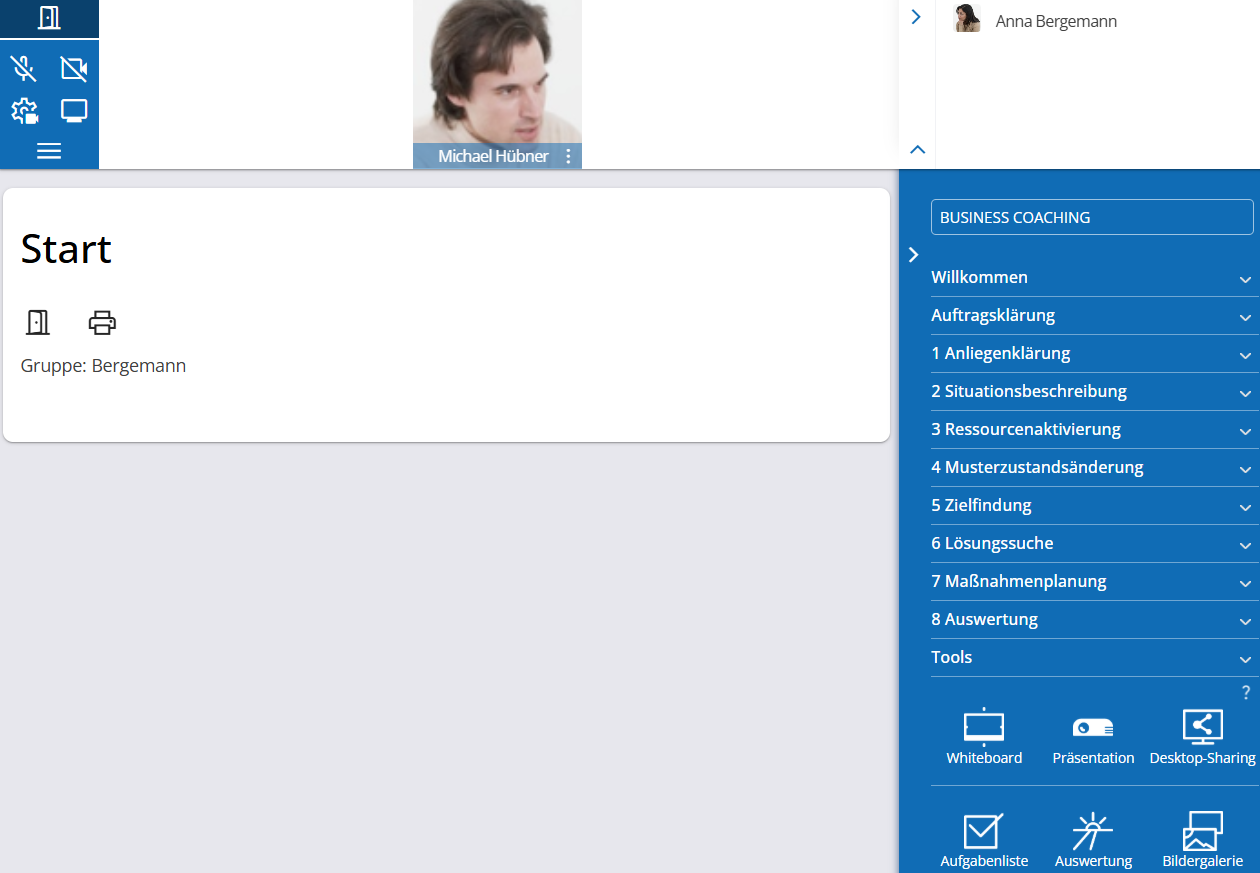
The header bar is your anchor. Here, you manage your own presence while keeping a close eye on the group.
# Your Controls (Top Left)
Stay in control of your technology and participation at all times with these essential buttons:
| Icon | Function | Your Benefit |
|---|---|---|
| door_open | Leave Workspace/Session | Your data is saved automatically. You can rejoin the session at any time using your account without losing any progress. |
| mic videocam | Microphone & Camera | Activate your audio and video with a single click for direct, personal interaction. |
| settings_video_camera | Device Configuration | Switch flexibly between different headsets or cameras—even during a live session. Details: Device Configuration |
| monitor | Video Mode | Choose your view: Use "Gallery View" for faces or focus on the tools for deep work. |
| menu | Menu: More Functions | Access advanced features like the waiting room, participant management, or breakout sessions for focused small-group work. |
# Session Participants
Collaboration thrives on interaction. The header bar shows you exactly who is currently active and who might join later.
# group Online Participants (Left)
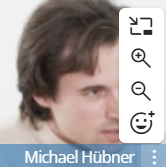
- Live View: As soon as you activate your camera, your portrait turns into a live image. The same applies to other participants: as soon as they activate their cameras, they are also displayed with their live feed.
- Audio Feedback: Whoever is currently speaking is highlighted in color – ensuring a natural conversational flow.
# Participant Menu
When your mouse pointer hovers over a participant or you click on more_vert, the following icons appear for selection:
| Icon | Function | Description |
|---|---|---|
| pip pip_exit | Undock Dock | Detach video images from the bar using the pip icon to place them freely on your screen. pip_exit docks them back into the bar. |
| zoom_in zoom_out | Zoom In Zoom Out | Use the zoom_in and zoom_out icons to scale video images as desired. Alternatively, left-click or right-click on an image to change the scaling. Once the smallest or largest possible size is reached, the size toggles to the other extreme. |
| add_reaction | Emoticon | Select an emoji/emoticon add_reaction to give feedback to other session participants or to signal that you wish to speak. This option is only available on your own portrait/video image. |
# visibility_off Who else is involved? (Offline Area, Right)
The right-hand edge lists people who have access to the session room but are currently offline.
- Waiting Room: For ad-hoc sessions, you will see immediately if a guest is waiting to enter.
- Smart Pop-ups: New messages or events (e.g., incoming chat messages) appear here as brief notifications so you never miss a beat.
Save Space
Click the small arrow chevron_right to collapse the offline list. The keyboard_arrow_up icon collapses the entire header bar. This maximizes your focus on the content, which is especially helpful on smaller screens.
# The Sidebar: Your Toolbox
In the right-hand sidebar, you will find everything you need for methodological work.
# component_exchange Formats
Choose the appropriate methodological framework for your session.

- Flexible Switching: Moderators and owners can change the format at any time—either just for themselves or synchronized for the entire group.
- Structure: The format determines which tools are available. Moderators also receive process phases and question templates tailored to the selected format.
# wallpaper_slideshow Adding Tools
Simply click on the desired tool type (e.g., Whiteboard or Desktop Sharing), give it a title, and start working together instantly.
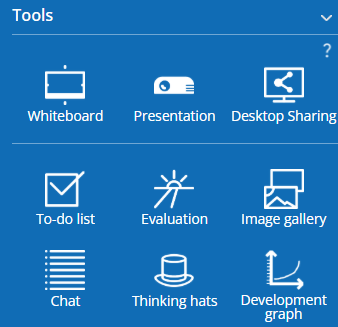
Tools above the line are general-purpose tools. Below the line, you will find specialized tools perfectly matched to your current format and phase.
Save Space
Click the small arrow chevron_right to collapse the sidebar. Within the session settings, the sidebar can also be completely hidden for guests and contacts to simplify the view.
Further information on formats and tools can be found in Formats and Tools.
# The Main Workspace: Where the Magic Happens
This is the heart of your session.
- Full Synchronicity: Everything you do within a tool (e.g., drawing on a whiteboard) is visible to all other participants in real-time.
- Worry-Free Working: There is no "Save" button—the system captures and secures every step you take instantly.
- Result Security: Use the Print Session (PDF) menu to export your entire workspace as a PDF at any time—perfect for documentation. Of course, you can also simply return to the session later and continue exactly where you left off.
Ready to start? Use these tools to transform the digital session room into your personal world of work. If you have any questions, the search bar at the top right is always there to help!