
# Session Settings
Keywords: Session Settings, hide sidebar, hide tool menu, hide tool toolbar, microphone and camera control, video mode(Co-)Group Managers can use the session settings to customize the active session. All changes are applied instantly for all participants.
Video Guide
# Accessing the Dialog
In a session, click the tv_options_input_settings Session Settings icon in the top left to open the configuration dialog.
Table of Contents
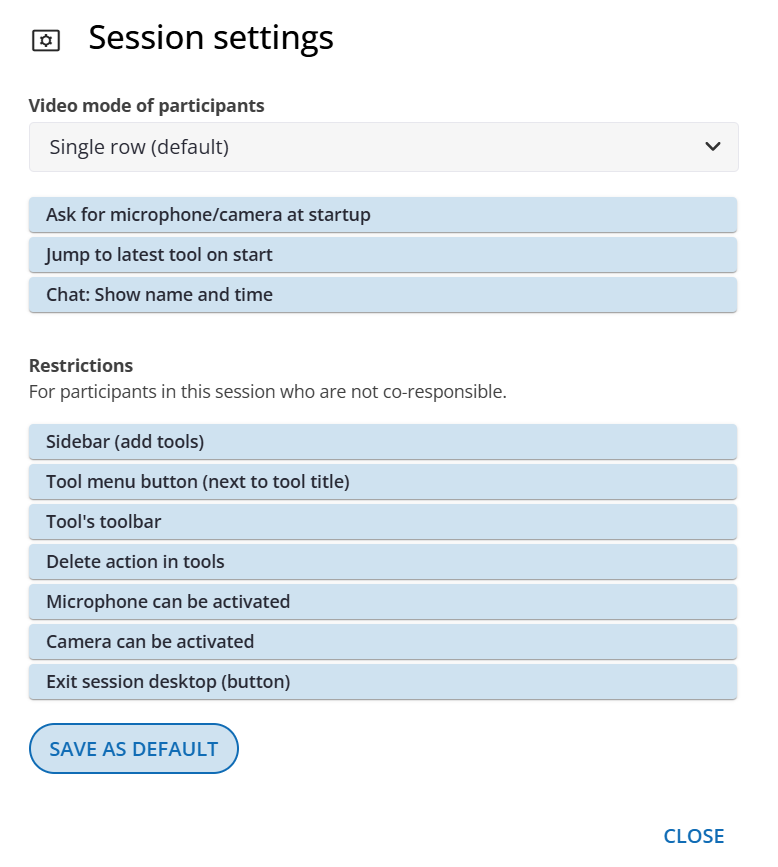 Figure: Overview of available session options.
# Participant Video Mode
You can determine how video images and portrait photos of participants are displayed for everyone.
# Standard (Single Row)
Video images are displayed space-efficiently in a single row at the top.
- Advantage: Maximum workspace for tools.
- Use case: Ideal for active collaboration within tools. Participants can still customize their own view (undock/enlarge) as needed.
# Tiles (Full Screen)
Video images are automatically distributed across the entire screen, appearing as large as possible.
- Advantage: Focus on facial expressions and group presence.
- Use case: Ideal for welcomes, check-ins, or pure discussion rounds.
- Note: The grid view covers the tools. Participants can collapse the bar at any time using the arrow icon at the bottom.
# Double Row
Larger groups are displayed in two rows. This ensures a good overview of the group while still leaving enough room to work with the tools.
# Speaker View
The person who spoke last is displayed in a reserved image area. For larger groups, this keeps the currently active speakers in focus.
# Start Options
# Prompt for microphone/camera at start
Activate this option (the toggle will be highlighted in color) to make it easier for participants to join.
- Effect: Immediately upon loading the session, the following dialog appears:
settings_video_camera Microphone and camera settings. - Benefit: Participants can test and authorize their hardware directly without having to look for the corresponding buttons in the interface.
# Jump to the latest tool at start
Controls the focus when entering the room.
- Enabled: The view automatically scrolls to the latest element (at the bottom).
- Ideal for: Ongoing projects and consultations where you want to continue exactly where you left off.
- Disabled: The view starts at the very top at the first tool.
- Ideal for: Structured workshops and presentations that follow a chronological step-by-step order.
# Chat Settings
# Show name and timestamp
Determines whether additional information is displayed for chat messages.
- Enabled: Default for better orientation in groups and chronological tracking.
- Disabled: Helpful for anonymized protocols or clean screenshots for documentation.
# Participant Restrictions
Here you can reduce the complexity of the interface for guests and participants (those without moderation rights). Colored toggles mean: The function is available for participants.
# View & Tools
- Sidebar (Add tools): Prevents participants from independently adding new tools to the session.
- Tool Menu: Hides the menu next to tool headings (prevents participants from renaming or deleting tools).
- Tool Toolbar: Prevents adding objects or text fields within the tools.
- Deleting in Tools: Disables the Delete key and the delete_forever icon for participants.
# Communication & Navigation
- Microphone / Camera can be activated: If disabled, participants cannot turn on their hardware. Existing connections are disconnected immediately. Ideal for lecture situations.
- Leave Workspace: Hides the door_open Leave workspace/session icon to prevent participants from accidentally leaving the session.
Note: Browser tabs can, of course, still be closed.
# Save as Default for Sessions
If you regularly require specific settings (e.g., a hidden sidebar), you can save them as your personal standard.
- Configure all desired settings in the dialog.
- Click Save as Default.
- Effect: Every new session you create will automatically start with this setup.
Note on existing sessions
Sessions in which you have already made individual settings remain unaffected by this. The default only applies to new or previously unconfigured sessions.