
# security Granting Browser Permissions
To be heard and seen in a session, your browser requires explicit permission to access your microphone and camera. If you missed the prompt during the initial start, you can adjust these settings at any time.
# lock Quick Activation via the Address Bar
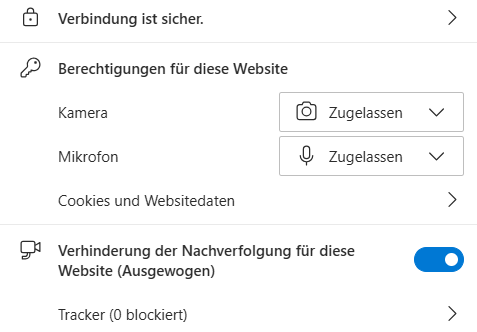
The easiest way is to use the security icon directly next to the web address (URL):
- Click the padlock icon (or the settings/slider icon) to the left of the URL in the address bar.
- In the dialog that appears, you can toggle the switches for Camera and Microphone directly to "On" or "Allow".
- Refresh the page if necessary for the changes to take effect.
# settings Managing Permissions Manually
If the icon in the address bar is not sufficient, you can manage the settings more deeply within the browser options.
# Google Chrome
Copy and paste the following paths into your address bar:
- Camera:
chrome://settings/content/camera - Microphone:
chrome://settings/content/microphone
Manual Path: more_vert (3-dot menu) > Settings > Privacy and security > Site settings > Permissions > Microphone & Camera
# Microsoft Edge
Use these direct links for the address bar:
- Camera:
edge://settings/content/camera - Microphone:
edge://settings/content/microphone
Manual Path: more_vert (3-dot menu) > Settings > Cookies and site permissions > Microphone & Camera
# Mozilla Firefox
Direct link to privacy settings:
about:preferences#privacy
Manual Path: menu (3-line menu) > Settings > Privacy & Security > Scroll down to the Permissions section > Microphone & Camera (click "Settings..." for each).
Important Note
After changing the permissions in the browser settings, you usually need to reload your session tab (refresh or press F5) so that the hardware can be correctly detected.
# Do you need further assistance?
Have you granted the necessary permissions, but the hardware is still not being recognized?
Helpful Links & Tutorials
You can find further support in our guides:
- question_exchange FAQ regarding Audio and Video Problems.
- movie Video Tutorial: Activate and configure audio and video
- book_ribbon Knowledge Base: Audio and Video